Extract text from an image
Turn printed text in a picture into editable text. Choose one image, run recognition, compare the result with the original and correct it before copying or downloading.
The tool currently recognizes Traditional Chinese, Simplified Chinese and English. It produces plain text, not a recreated document layout.
Choose an image or drag it here
JPG, PNG or WebP; up to 10 MiB and 12 megapixels per image.
Recognizes Traditional Chinese, Simplified Chinese and English. Images wider than 2,400 pixels on their longest side are reduced; transparent areas are filled with white.
Images and text are not uploaded or saved on this page. Copy or download your result before leaving.
Choose an image to get started.
Check numbers, names and proper nouns carefully. The result is plain text; tables and original layout are not preserved.
How do I extract text from an image?
- Choose one JPG, PNG or WebP image, then select Recognize text.
- Wait for recognition. On first use, the OCR files are loaded from this site; timing depends on your connection and device.
- Compare the result with the image, edit it if needed, then copy the text or download a TXT file.
What images work best?
Use a clear, upright image of printed text arranged horizontally, such as a document screenshot or a photo of a flat page. If the text is small, blurry or affected by glare, crop the text area or take another photo.
Images wider than 2,400 pixels on their longest side are reduced; transparent areas are filled with white.
Recognition is intended for Traditional Chinese, Simplified Chinese and English. Handwriting, vertical text, animation, PDF and direct HEIC input are not supported. The tool does not reconstruct tables or reading order across columns. Each image can be up to 10 MiB, 12 megapixels and 12,000 pixels on either side.
Recognition can miss or misread characters, especially numbers, names and proper nouns. Review the result against the image before using it. If no text appears, try a clearer image.
Common questions
Do images leave my device?
No. Recognition runs in your browser using OCR files hosted by this site. The image and text are not sent to a recognition service or saved by this page. Copy or download anything you need before clearing or leaving.
Do I need to choose a language?
No language menu is provided. The tool recognizes Traditional Chinese, Simplified Chinese and English. It does not convert between Chinese scripts.
Why can the first recognition take time?
The first run loads the locally hosted OCR model and prepares the browser tool. The model files are larger than the page interface, and processing speed depends on your browser, device and image. You can cancel, resize the image or crop the text area and try again.
Can I use a photo from an iPhone?
Convert HEIC to JPG first with the HEIC to JPG converter. Then choose the JPG here. This tool accepts static JPG, PNG and WebP images.
Extract text from an image and proofread the result
Back to toolStart with a clear image of printed text
Image-to-text recognition can save retyping when you have a screenshot of a notice, a photographed page or a short printed label. It works best when the text is in focus, upright and arranged in horizontal lines. A close crop can help when the text occupies only a small part of the image.
Choose a static JPG, PNG or WebP image. The tool does not accept animated images, PDF files or HEIC directly. Handwriting and vertical text are outside the stated use. It also returns plain text rather than restoring table cells or reading order across multiple columns. If your source is an iPhone HEIC photo, convert it to JPG before choosing it here.
Check the size and what happens before recognition
One image can be up to 10 MiB and 12 megapixels, with neither side longer than 12,000 pixels. Images whose longest side exceeds 2,400 pixels are reduced before recognition. Transparent areas are filled with white for the working image. These steps keep the input within the tool’s processing limits; they do not sharpen blurry text or restore details that were not captured.
Select an image and review its preview before starting recognition. If the text is too small, crop closer or resize the original first. If there is glare, perspective distortion or motion blur, retaking the photo may help more than enlarging it. The first recognition can take longer because the browser loads the self-hosted OCR files and initializes the tool; speed depends on the connection, browser and device.
Try the fixed sample and compare every line
This site’s sample is a 1,800 × 1,100 PNG made for practice. It contains three lines of fictional meeting and order information. Download the original sample, choose it above and select Recognize text. Compare the output line by line with the text shown here rather than judging only whether the result looks fluent.
The table below preserves the original Chinese lines and the result recorded from a browser run on 2026-10-04. All three lines matched in that run. This is one historical result from one clear image, not an accuracy rate and not a new test of other images or languages.
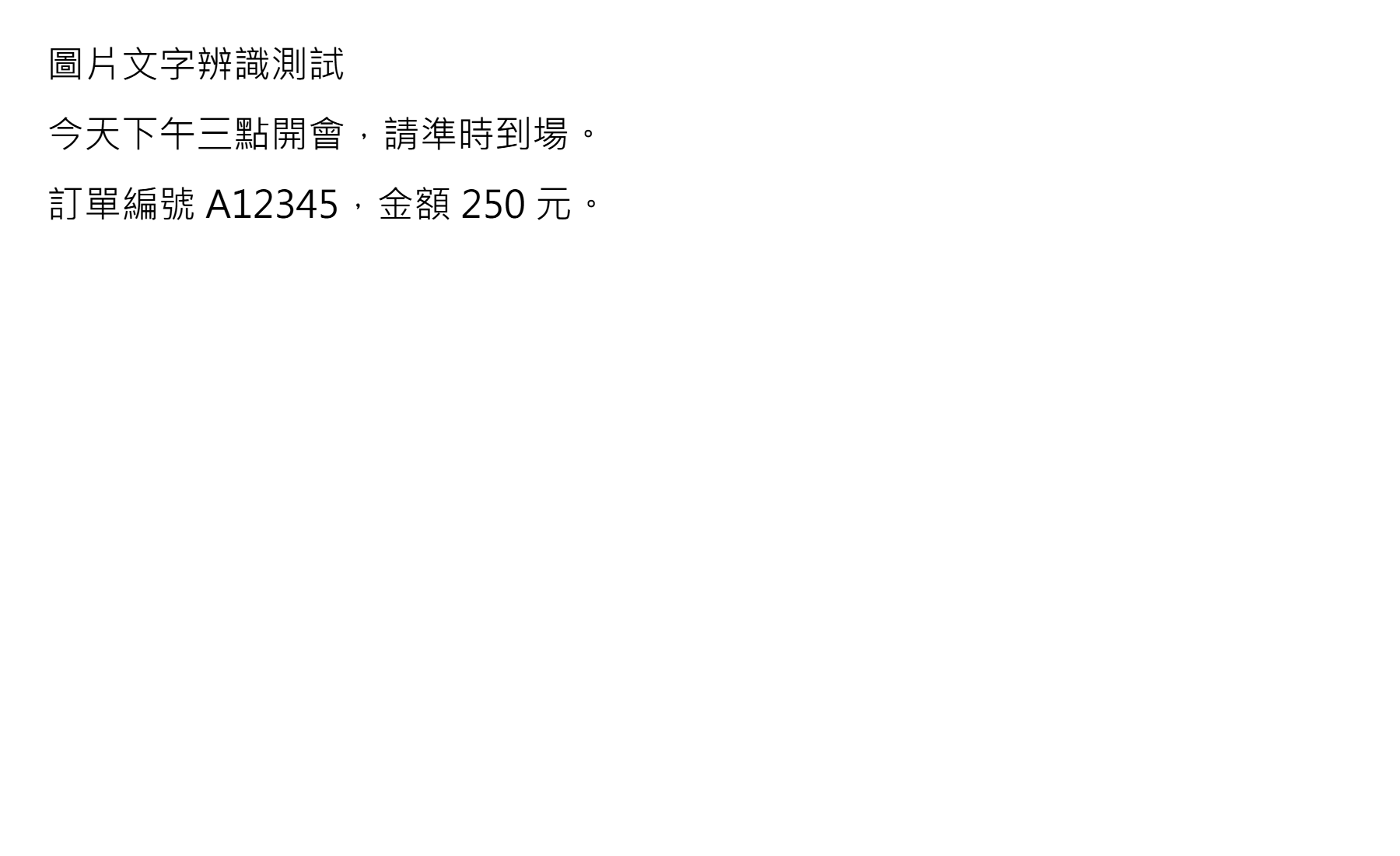
| Original Chinese text | Recorded output |
|---|---|
| 圖片文字辨識測試 | 圖片文字辨識測試 |
| 今天下午三點開會,請準時到場。 | 今天下午三點開會,請準時到場。 |
| 訂單編號 A12345,金額 250 元。 | 訂單編號 A12345,金額 250 元。 |
Proofread details that can change the meaning
OCR can omit a character or choose a visually similar one. Compare numbers, names, dates, amounts, punctuation and product codes against the image. In the sample, check the letter A and digits 12345 separately from the Chinese words, then confirm the amount 250 and the final punctuation. A sentence that reads smoothly can still contain a wrong figure.
Edit the result in the text box only after checking it against the image. Do not fill in missing words from memory or assume that a plausible-looking amount is correct. If a line is hard to read, take a clearer photo or crop that region and recognize it again. The tool does not provide a confidence score, so it cannot tell you which output is safe to use without review.
Copy the text and keep only the version you need
When the edited text is ready, use Copy text or Download TXT. The download contains the text from the editor, not a formatted copy of the image. Check the filename and open the TXT file if you need to confirm what was saved. The page does not keep a draft after you clear it, refresh or leave.
Images and recognized text stay in the browser; they are not sent to an OCR service or stored by this page. The OCR model and runtime files are loaded from this site on first use and recognition uses the device. Download or copy any result you need before leaving. For license information about the OCR components and model, see the notice linked on the tool page.
Sources and product scope
For an overview of OCR in another PDF product, see Adobe’s guide. Its workflow and language availability differ by product; use the supported languages, formats and limits listed on this page when working with this tool.
- Adobe Acrobat: Recognize text in scanned documentsOverview of Adobe Acrobat’s own OCR workflow; supported languages and features differ by product.
- Fixed image used in the exampleSite-created 1,800 × 1,100 practice PNG; the historical result refers to a 2026-10-04 run.
- OCR component and model noticesLicense notices for the self-hosted OCR components and model.
Updated